[chrome extension] · v1.7.1 · mit · open source
Download disabled?
You can watch the recording back online — you just can’t save it without requesting access first. This extension fixes that. It saves Teams recordings, SharePoint MP4s, and transcripts straight from your browser. Nothing gets installed on a server, and nothing phones home.
- 16
- max parallel
- 03
- video formats
- 03
- transcript formats
- 00
- trackers
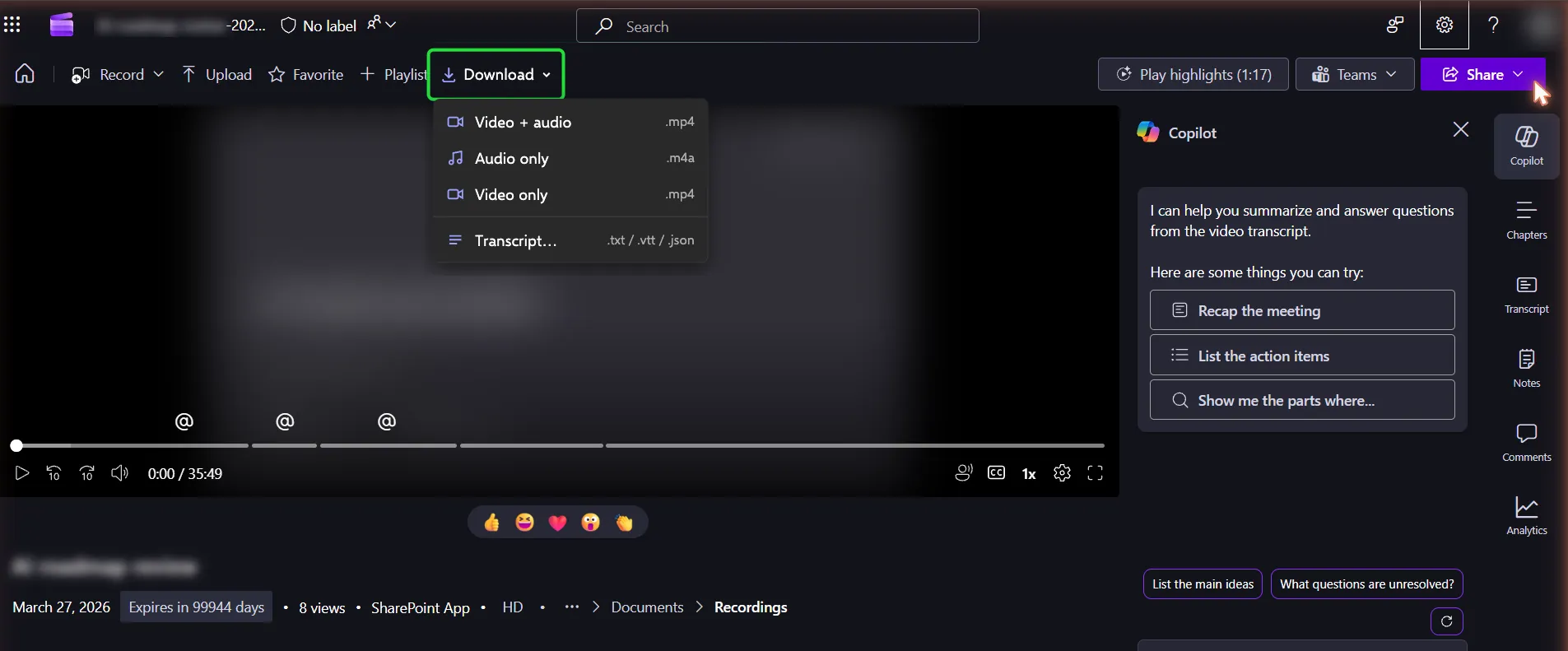
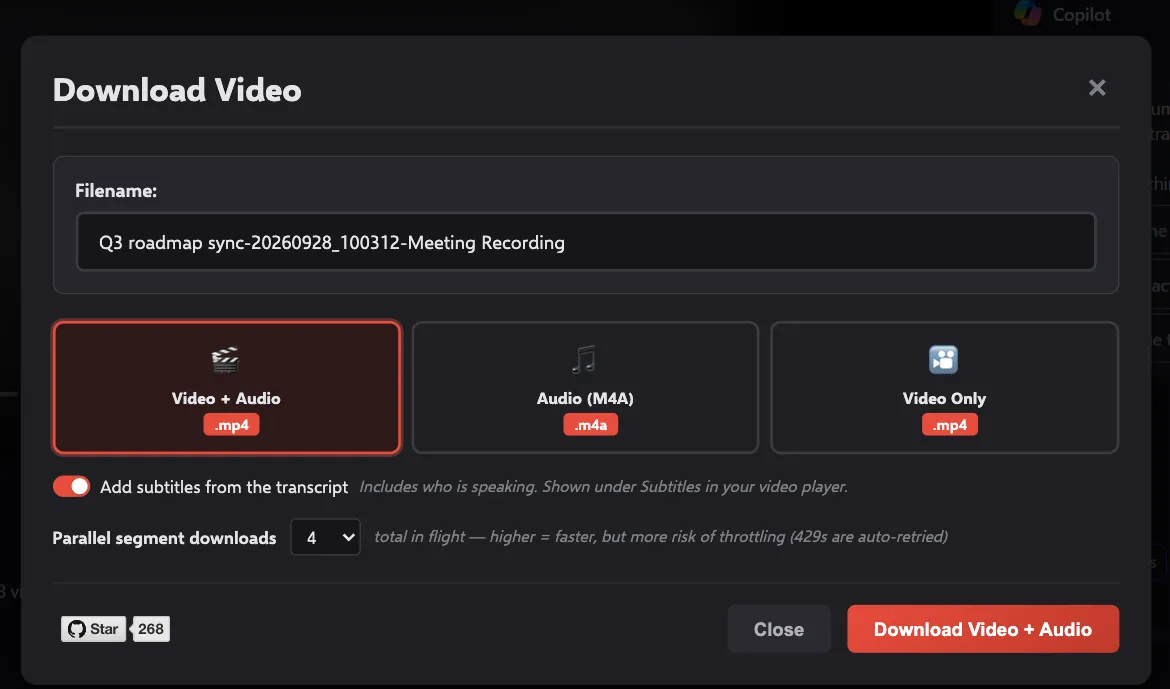
in your actual Teams / SharePoint tab — two new buttons, native chrome
01 / why this exists
The recording's on your screen.
The download button just isn't.
The recording is right there on your screen, and you can watch the whole thing back. You just can’t save it — Teams, SharePoint, and Stream switch Download off at the tenant-policy level, even for a call you were in. This extension puts the button back, using the same Microsoft URLs the player already calls. It’s not a bypass: if you can’t play it, you can’t save it.
02 / features
Video and transcript — two pipelines.
video & audio
.mp4 · .m4a- 01
In-browser
Video+Audio MP4, Audio M4A, or Video Only. No external tools.
- 02
Parallel fetching
Tunable 1–16 concurrent segments. Default 4 keeps throttling risk low.
- 03
Auto-backoff
429s respected with Retry-After. Transient throttling won't fail the download.
- 04
SEA decryption
SharePoint's AES-128-CBC encrypted segments decrypted in-flight.
- 05
Worker-thread mux
Multi-track mux runs off the UI thread. Long recordings never freeze the tab.
- 06
Editable filename
Auto-derived from the meeting title. Edit before save.
- 07
Progress bar
Per-segment status. Cancellable. No corrupt partials.
- 08
DRM detection
Widevine/PlayReady → clear dialog, never a broken file.
transcript
.json · .vtt · .txt- 01
RAW JSON
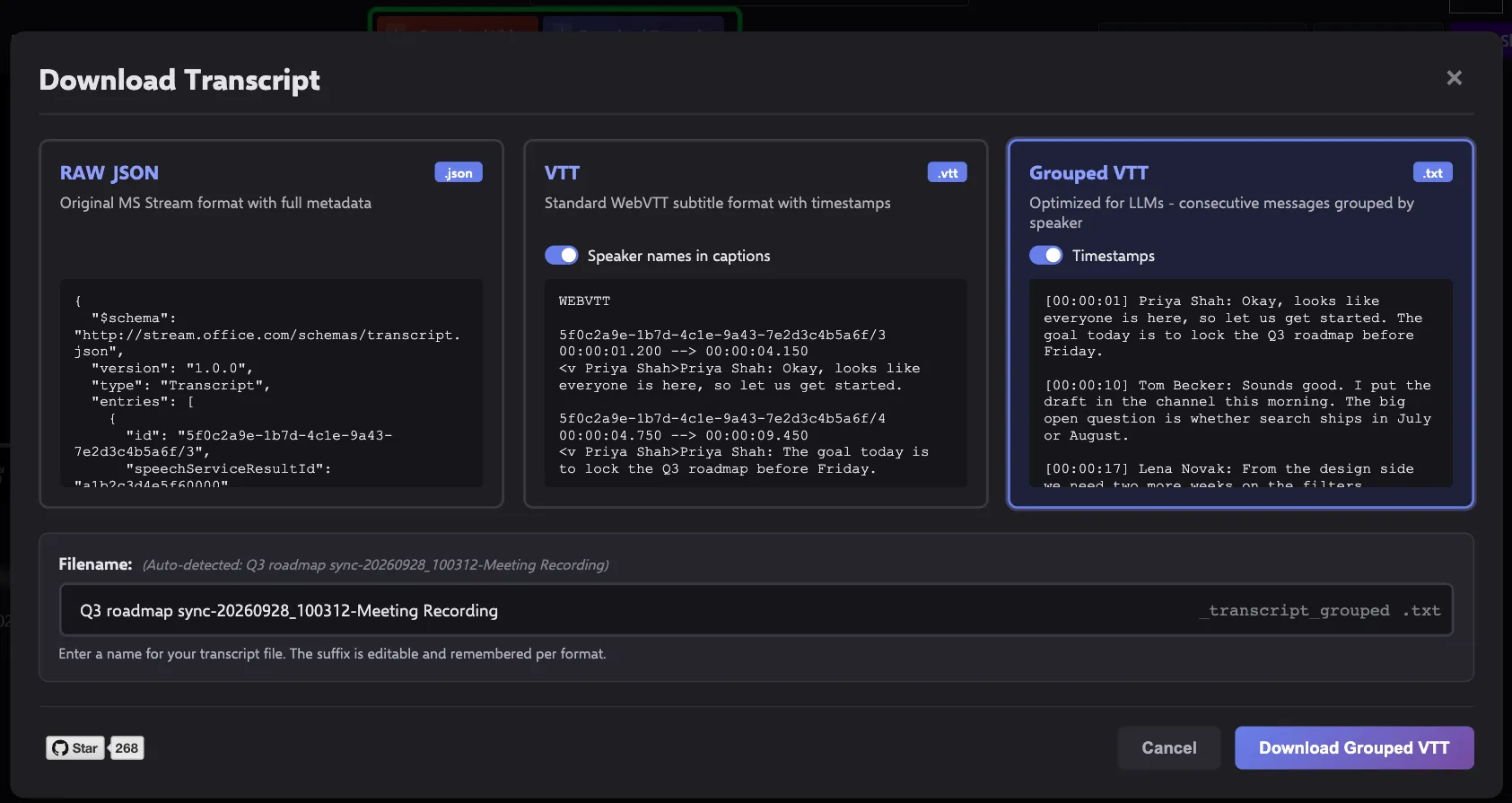
Original MS Stream format. Speaker names, timestamps, entry IDs.
- 02
WebVTT (.vtt)
Standard subtitle format. Plays in VLC, IINA, Plyr.
- 03
Grouped TXT
Same-speaker lines collapsed. LLM-ready.
- 04
Live preview
All three formats rendered before you pick.
- 05
Speaker names
Real display names preserved. Not anonymous GUIDs.
- 06
Last-format memory
Picks up where you left off. Storage permission only.
- 07
No-transcript detection
Clear dialog if there's no transcript.
- 08
Custom filename
Auto-derived. Editable before save.
03 / interface
One menu. Where you'd look for it.
04 / for
Who this is for.
Professionals
Archive the all-hands. Save the customer call before retention deletes it.
Students & educators
Save lectures for offline study. Build personal study packs.
Accessibility
Personal copies for review at your own pace. Subtitle files for any local player.
AI & LLM workflows
Grouped-TXT is built for LLM input. Speaker-collapsed, clean blocks.
Analysts & researchers
Pull JSON into pandas. Cross-meeting search without paying a vendor.
Content creators
Extract audio for podcasts. Pull subtitles for an edit.
05 / privacy & security
It all runs in your browser. Nothing leaves your machine.
The bytes stay on your machine
Segments come from Microsoft’s CDN, get decrypted in your browser, and go straight to your Downloads folder. There’s no server in the middle.
No analytics, nothing phoning home
The extension only talks to teams.microsoft.com and *.sharepoint.com — the same hosts your browser already talks to.
All the source is on GitHub
It’s MIT-licensed, with the full source and load-unpacked instructions in the README. If you’d rather read the code first, it’s one toggle in chrome://extensions.
- manifest
- MV3
- permissions
- storage + host
- remote code
- none
- data sent
- 0 bytes
06 / faq
01 Why is Download disabled in Teams? +
02 Does this bypass access restrictions? +
03 Will it work on DRM-protected recordings? +
04 Can I generate MP3 or WAV? +
05 How fast is the in-browser download? +
06 Is anything sent to a third-party server? +
07 What about Firefox? +
08 What if the meeting was never transcribed? +
09 Is it free? +
10 How do I uninstall? +
07 / stars
People are noticing.
Star history on GitHub — the only metric this project keeps. If the extension saved you time, a star helps others find it.
08 / install
Give it a try.
It’s one click from the Chrome Web Store. Or, if you’d rather read the code first, clone the repo and load it unpacked in chrome://extensions. Once it’s installed, click its toolbar icon for a quick how-to. If it saves you some hassle, a star on GitHub is always appreciated.
v1.7.1 · MIT · 22 KB unpacked · works on teams.microsoft.com, teams.cloud.microsoft, *.sharepoint.com